Tabs Page Tutorial
Welcome to the Tabs page! This is where you will probably spend most of your time on TabCollab. From here, you can:
- Create/edit/delete projects, albums, and tabs
- Add/edit/delete tab versions
- Add/remove contributors
- Download and play your tab versions
Creating a New Project
To create a new project, select
Fill out the fields and upload a project image if you wish. You can also add contributors, which will give other users access to this project. Look for this drop down list:
The list of contributors is pulled directly from your friends list, so the drop down list will be empty until you add friends.
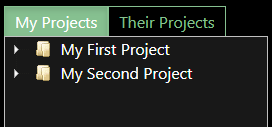
Once you save the new project, you'll see it in the tree on the left side of the page.
Using the Tree
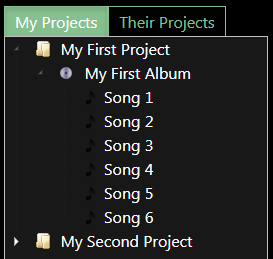
The tree is where you access all of your items:
- Projects
- Albums
- Tabs
Their Projects shows projects for which you are a contributor. Their Projects is where your contributors will access your projects.
Using the Tree cont.
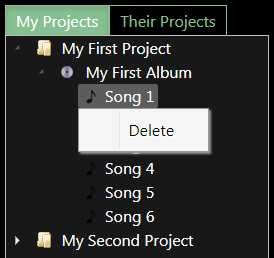
You can delete projects, albums, and tabs by right-clicking them. This right-click feature is only available for My Projects.
You can reorder tabs and albums and move them to different parents by click-dragging.
The buttons at the top of the page will change based on which item in the tree you have selected. For example, if you select a tab, you'll see change to
You'll also see become available.
Creating and Editing Items
To create a new item
- Select the item's parent in the tree
- Select the new item button
For example: creating a new album
- Select the project in the tree
- Select
To edit an item
- Select the item in the tree
- Select the edit item button
For example: editing a tab
- Select the tab in the tree
- Select
Accessing Tab Versions
Tab versions will load when you select a tab in the tree:
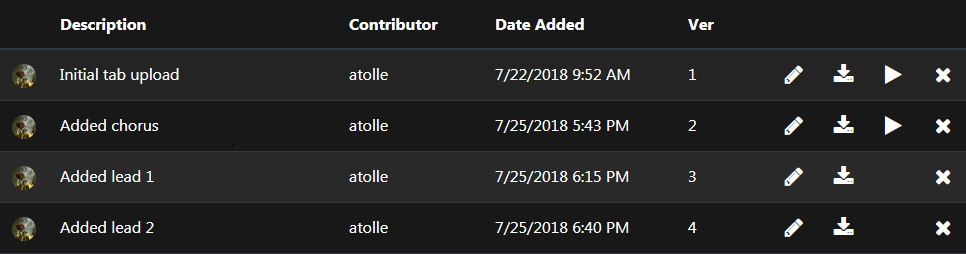
In the tab version table you will see up to four icons:
The edit button is available for the project owner and the user that uploaded the tab version. Other users will not see this button.
The download button is available for all users.
The play button is available for all users for tabs that are Guitar Pro format versions 3 through 6 (.gp3, .gp4, .gp5, .gpx).
The delete button is available for the project owner and the user that uploaded the tab version. Other users will not see this button.
Tabs Page Tutorial (Mobile)
Welcome to the Tabs page on mobile! This is where you will probably spend most of your time on TabCollab. From here, you can:
- Create tabs
- Add/edit/delete tab versions
- Download and play your tab versions
Accessing Tabs
The mobile Tab page is organized by
- Projects
- Albums
- Tabs
- Tab Versions
You expand Projects to access Albums, expand Albums to access Tabs, expand Tabs to access Tab Versions.
Creating Tabs and Tab Versions
Create new Tabs via
You have to have at least one Project with one Album to create a new Tab or Tab Version.
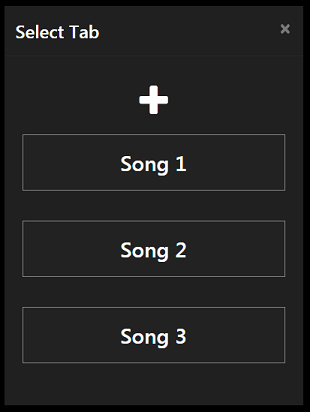
You will be prompted to select the Project and then the Album for your new Tab or Tab Version.
You can create a new Tab via at the top of the Tab list, or create a new Tab Version by selecting a Tab.
-
Demo Project
-
Demo Album
- Demo Tab
-
Demo Album
-
Friend's Project
-
Friend's Album
- Friend's Tab
-
Friend's Album